How to Use the Free Amazon PPC Bulk Campaign Tool
Managing a few Amazon ad campaigns through Campaign Manager is simple. But changing bids, budgets, keywords, and targeting across dozens of campaigns can take hours of repetitive work.
The free Amazon PPC bulk campaign tool lets you create or update hundreds of campaign entities through spreadsheet-based bulksheets. It does not replace PPC strategy or automation, but it enables large-scale manual changes to be made faster.
This guide explains where to find Amazon bulksheets, how the main fields work, and how to avoid common upload errors. ScaleA2Z’s PPC management team can also handle these changes for brands that need expert support.
What Is the Free Amazon PPC Bulk Campaign Tool?
Amazon bulksheets are free spreadsheet files available through Bulk Operations in the Amazon Ads console. They let you create, update, or archive multiple campaigns, ad groups, keywords, targets, and ads without editing each entity separately.
You can also review Amazon’s official bulksheets overview to understand when bulksheets are more suitable than Campaign Manager.
Bulk Operations vs. Bulksheets: What Is the Difference?
Bulk Operations is the section of the Amazon Ads console where you download, upload, and review campaign spreadsheets. A bulksheet is the spreadsheet file used within that workflow.
Why You Should Always Download a Fresh Bulksheet
Amazon has retired its legacy bulksheet format and continues to update the file structure over time. As one recent example, Amazon added a new “Off-Amazon ad serving” column to the Sponsored Products bulksheet in June 2026 for US advertisers, giving direct control over off-Amazon ad settings that previously required a separate workflow.
Download a fresh bulksheet before every important edit instead of reusing an older file.
Where to Find It in Seller Central
This guide focuses on Seller Central. Vendor Central users access Bulk Operations through a similar but separate workflow inside Amazon Advertising Console.
Getting to the tool takes a few clicks:
- Log into Seller Central and go to the Advertising tab
- Select Campaign Manager
- Click Bulk Operations in the left-hand menu
- Choose Create spreadsheet for download
Quick Tip: Bookmark the Bulk Operations page directly. If you’re managing this weekly, digging through the Advertising menu every time adds up to wasted minutes you don’t need to lose.
How to Download Your Bulk File
Downloading the file is straightforward, but a few settings decide how clean your data actually is. Get these right upfront, and you’ll spend less time filtering junk out of the spreadsheet later.
Setting Your Date Range
The available download period may vary by ad product, marketplace, and account interface. Select the longest date range available in your account and save regular exports if you need older campaign records.
Exclude Options — Placement Data and Brand Assets
Before downloading, you’ll see two optional exclusions:
- Exclude placement data: Select this option only when you do not need placement performance or bid-adjustment fields. Leave it unchecked if you plan to review or change placement modifiers.
- Exclude brand assets: Select this option when you do not need references to existing logos, images, or videos in the downloaded workbook.
Quick Tip: If you manage campaigns across multiple marketplaces, download and upload separate bulksheets for each. Amazon does not support cross-marketplace bulk files in a single upload.
Understanding the Bulk Sheet Columns
Open the file and the column count alone can feel overwhelming. Most sellers only need to understand three fields well. Get these right, and the rest of the sheet makes sense.
Entity, Operation, and State — The Three Fields That Matter Most
- Entity tells Amazon what type of object the row refers to — Campaign, Ad Group, Keyword, Product Ad, or Negative Keyword.
- Operation tells Amazon what to do with that row — Create, Update, or Delete.
- State tells Amazon whether that entity should be Enabled, Paused, or Archived.
Get any one of these three wrong on a row, and the upload either fails outright or applies a change you didn’t intend. These fields are a common source of upload errors because Amazon validates the file during processing rather than while you are editing individual spreadsheet rows.
| Column | Controls | Common Mistake |
|---|---|---|
| Entity | What object the row affects | Selecting "Keyword" when editing a Product Ad row |
| Operation | Create / Update / Archive | Leaving blank, or using "Update" on a row that doesn't exist yet |
| State | Enabled / Paused / Archived | Archiving a Campaign instead of just an Ad Group inside it |
| Campaign ID | Links the row to an exact campaign | Typing the ID manually instead of copying it, introducing a stray character |
| Match Type | Broad / Phrase / Exact for keywords | Applying the wrong match type across an entire row block using copy-paste |
Quick Tip: Never manually rewrite Campaign IDs, Ad Group IDs, or other numeric identifiers. Copy them directly from a freshly downloaded bulksheet.
Making Changes — Bids, Budgets, Keywords, Negatives
Once you understand the column structure, making changes is mostly copy-paste and filtering. Here’s the general workflow for the most common edits:
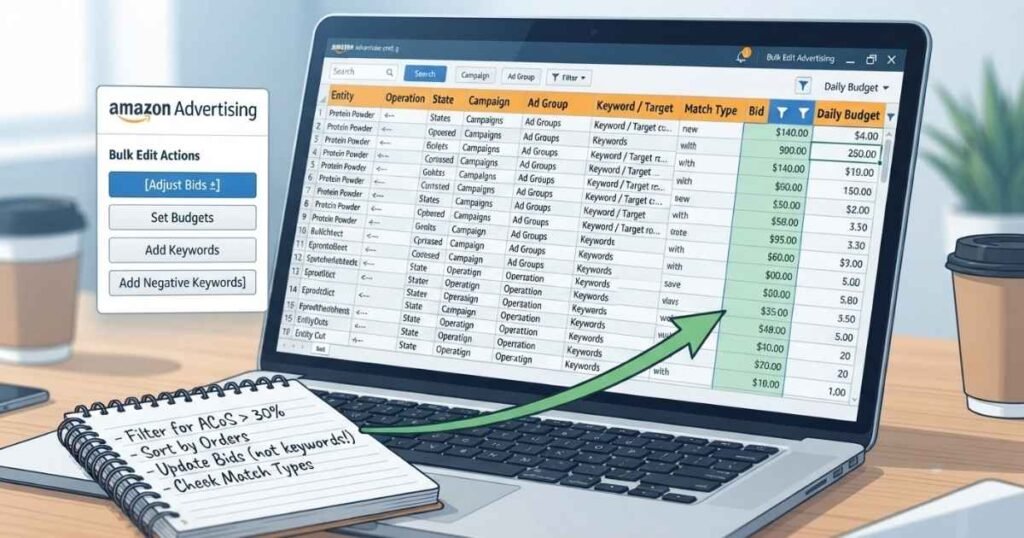
- Bid changes: Filter the relevant Keyword or Product Targeting entities, then review ACoS, conversion rate, CPC, orders, margin, and campaign objective before adjusting the Bid column.
- Budget changes: Filter by Entity = Campaign, update the Daily Budget column
- Adding new keywords: Insert new rows, set Operation to Create, fill Campaign ID and Ad Group ID exactly as they appear elsewhere in the sheet
- Adding negative keywords: Set Entity to Negative Keyword, Operation to Create, and specify match type (Negative Exact or Negative Phrase)
- Pausing inactive campaigns: identify campaigns with no meaningful recent activity, confirm that they are not seasonal, then use Update and set their State to Paused. Archive only when you are certain the campaign will not be needed again.
Let’s say you sell protein powder and you’re running 40 campaigns across three flavors. Instead of opening each campaign to raise bids on your top 10 converting keywords, you filter the sheet for converting keywords that meet your target ACoS and margin requirements, sort by orders, and adjust the relevant bids in one filtered spreadsheet instead of opening each campaign separately.
How to Create New Amazon PPC Campaigns With a Bulksheet
Creating a new campaign requires more than copying an existing row. Each campaign component must have its own row, and the rows must follow Amazon’s parent-and-child hierarchy. Download a fresh campaign-creation template from Bulk Operations before you begin, because required fields can vary by ad type and marketplace.
- Campaign row — Entity: Campaign, Operation: Create. Add campaign name, targeting type, daily budget, bidding strategy, start date, and State. Assign a temporary text identifier for child rows to reference.
- Ad Group row — Entity: Ad Group, Operation: Create. Link to the temporary Campaign ID, add ad-group name, default bid, and State.
- Product Ad row — link to the same Campaign and Ad Group identifiers, enter the SKU or product identifier.
- Keyword or Product Targeting row — one row per target, correct match type and bid on each (manual campaigns only; automatic campaigns use a different targeting structure).
Before uploading, confirm that every child row points to the correct parent, every required field is complete, and Product, Entity, Operation, and State use Amazon’s accepted values. Check Amazon’s official campaign-management instructions for the current entity hierarchy and required bulksheet fields.
Uploading Without Breaking Your Account
This is where many sellers lose confidence in bulksheets. One incorrect field can cause one or more rows to fail, and some processing messages require additional investigation. A quick review before uploading can reduce the time spent correcting rejected rows.
Why Uploads Get Rejected
Most rejected uploads come down to a handful of repeat offenders:
- Mismatched Campaign or Ad Group names — the text has to match exactly, including spacing and capitalization
- Missing required fields for the Entity/Operation combination you’re using
- Formatting changes from Excel — auto-corrected dates, stripped leading zeros, or currency symbols added to bid fields
- Missing or altered Campaign IDs — Ad Group IDs, or other identifiers required for Update and Archive operations
Amazon generally provides processing feedback that identifies unsuccessful rows. Some messages are clear, while others require you to compare the failed row with the current template.
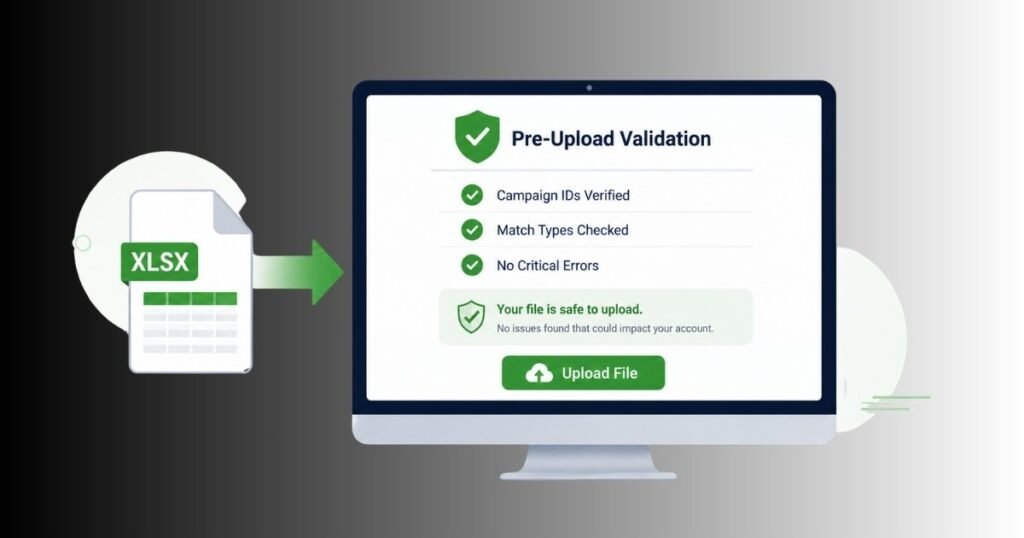
Pre-Upload Self-Audit Checklist
Before you click upload, run through this:
- Campaign and Ad Group names match your account exactly, copy-pasted rather than retyped
- Every new row has Entity, Operation, and State filled in
- No currency symbols or extra characters in bid or budget columns
- Campaign IDs, Ad Group IDs, and other existing identifiers have not been manually changed
- File saved as .xlsx, not converted to a different format
- You’ve kept a backup of the pre-edit version
How to Upload and Verify Your Changes
Return to Bulk Operations and select the option to upload a spreadsheet. Choose the edited .xlsx workbook without changing its worksheet names, headers, or structure. Amazon will validate and process the file, but a completed upload does not automatically mean that every row succeeded.
When processing finishes, open or download the results and review the status of each submitted row. Separate successful rows from rows showing missing fields, invalid values, incorrect identifiers, or formatting errors. Correct only the unsuccessful rows, and upload the revised file again rather than repeating changes that Amazon has already accepted.
Finally, open Campaign Manager and inspect the live campaigns. Confirm campaign and ad-group states, daily budgets, bids, keywords, match types, product targets, and negative keywords. If you created new campaigns, also confirm that each advertised product appears under the intended ad group before allowing the campaigns to spend.
If you manage multiple brands or hundreds of SKUs, this level of manual review adds up fast. That’s usually where full account management makes more sense than troubleshooting every upload on your own.
When to Use Bulk Sheets vs. the Standard UI
Bulk sheets aren’t always the better choice. For small accounts, the standard Campaign Manager interface is often faster and safer. Skipping bulk sheets entirely isn’t wrong for small accounts. However, sellers scaling past 15-20 campaigns while still editing one at a time in Campaign Manager typically lose hours every week to work that a single filtered upload could handle in minutes.
| Situation | Best Method | Why |
|---|---|---|
| Under 5 campaigns, occasional bid tweaks | Standard UI | Spreadsheet overhead isn't worth it for a handful of clicks |
| 20+ campaigns, weekly bid adjustments | Bulk sheets | Filtering and mass edits save real time |
| Launching a new product line | Standard UI first, bulk sheets for scaling | UI is faster for exploration and creative decisions |
| Archiving dozens of dead campaigns | Bulk sheets | One filtered upload replaces dozens of manual clicks |
| Building an audit trail across brands | Bulk sheets | Downloaded files double as a dated record of account state |
Most agencies and serious in-house teams end up using both. The UI handles spot checks and creative decisions. The free Amazon PPC bulk campaign tool handles repeatable campaign changes that need to be applied at scale.
Free Tool vs. Paid PPC Software — Do You Need Both?
Paid Amazon PPC software ranges from fixed monthly subscriptions to custom enterprise pricing. Depending on the platform, these tools may offer API connections, dashboards, automated rules, and recurring bid adjustments.
The honest trade-off:
- Bulk sheets are free, but every change is manual, and there’s no automation between uploads
- Paid software may automate repetitive tasks and recurring adjustments, but the available features vary by platform
- Bulksheets have a real learning curve and still require careful manual review before and after uploading.
- Paid tools may reduce repetitive manual work, but they do not eliminate the need for human review and strategic decisions.
Quick Tip: If you’re spending more time debugging failed bulk uploads than the task should take, that’s usually the signal you’ve outgrown the free tool, not a sign you’re doing it wrong. At that point, it’s less about buying software and more about deciding whether you want to manage that complexity yourself or hand it to a team that already has the workflow built.
An Illustrative Bulk-Editing Workflow
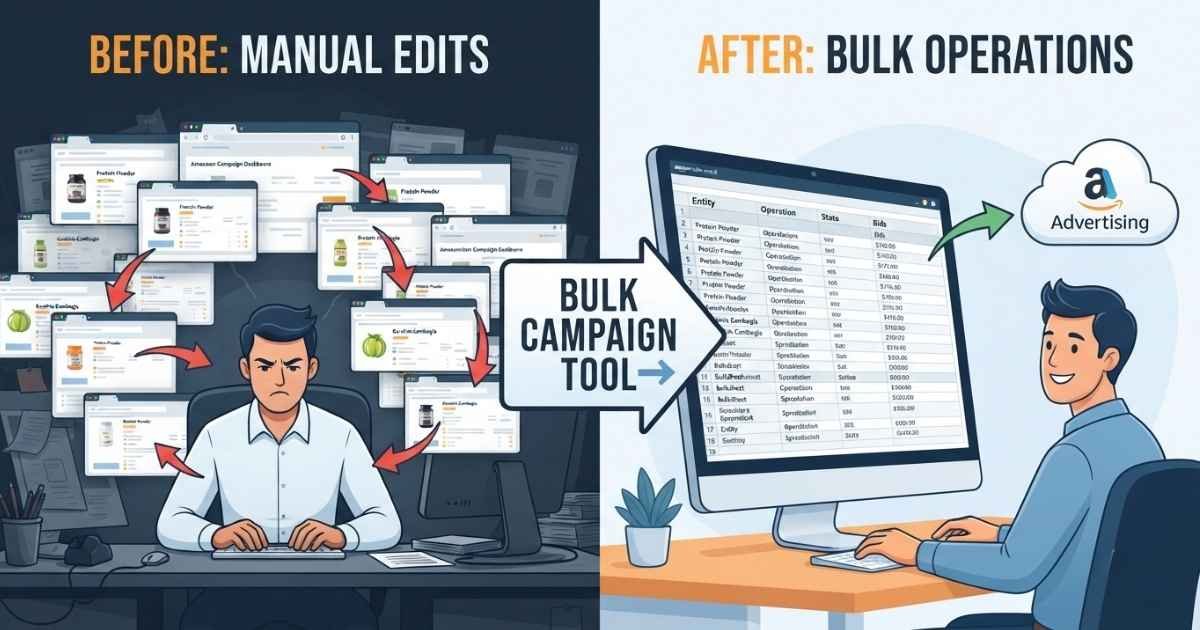
The following example is illustrative and is not a ScaleA2Z client result or a guaranteed time-saving. Say you’re running a supplement brand with 35 active campaigns across five SKUs. Your ACoS has increased over the last month, and manually checking each campaign would take hours.
- Before: You open each campaign separately, review its performance, and make individual bid changes through Campaign Manager. The process becomes repetitive as the number of campaigns increases.
- After: You download a bulk sheet, filter for keywords that exceed your target ACoS and spending thresholds, update the relevant bids, and upload the changes as a batch.
That’s the actual value of the tool. Not that it’s free, but that it replaces repetitive campaign-by-campaign editing with one filtered workflow.
Conclusion
The free Amazon PPC bulk campaign tool becomes much easier to use once you understand Entity, Operation, State, and the identifiers connecting each row. Bulk sheets do not replace strategic judgment, but they can make campaign changes faster and more organized.
If you’ve read this far and you’re still not confident touching your live campaigns with a bulk file, that’s a reasonable place to be. A wrong Entity value or a mismatched Campaign ID can cost you real budget fast. If you’d rather have someone who runs this workflow daily handle it instead, ScaleA2Z’s PPC management team manages bulk operations, bid strategy, and account structure together, so you’re not learning this the expensive way on your own account.
Frequently asked questions
Is Amazon's bulk campaign tool really free?
Yes. Bulksheets and Bulk Operations are built into Seller Central at no extra cost. You only pay for your ad spend, not for access to the tool itself.
What file format does Amazon use for bulk sheets?
Amazon’s current bulksheet templates use .xlsx format. Keep the original worksheet names, headers, and workbook structure when saving the file.
Why did my bulk sheet upload get rejected?
The most common reasons are mismatched Campaign or Ad Group names, missing required fields for the Entity and Operation combination used, or formatting changes Excel made automatically, like stripped leading zeros or added currency symbols.
How far back can I pull historical data in a bulk sheet?
The available historical period can vary by campaign type, marketplace, and account interface. Select the longest date range displayed in your Bulk Operations settings.
Can I use bulk sheets for Sponsored Brands and Sponsored Display, or just Sponsored Products?
Bulksheets support Sponsored Products, Sponsored Brands, and Display campaigns. However, each ad type uses different entities, required fields, and campaign hierarchies.
Should I use the free bulk tool or pay for PPC software?
It depends on account size and how much time you can dedicate to manual edits. Smaller accounts often do fine with the free tool. Larger, multi-brand accounts usually benefit from either paid automation software or professional account management to handle the complexity.