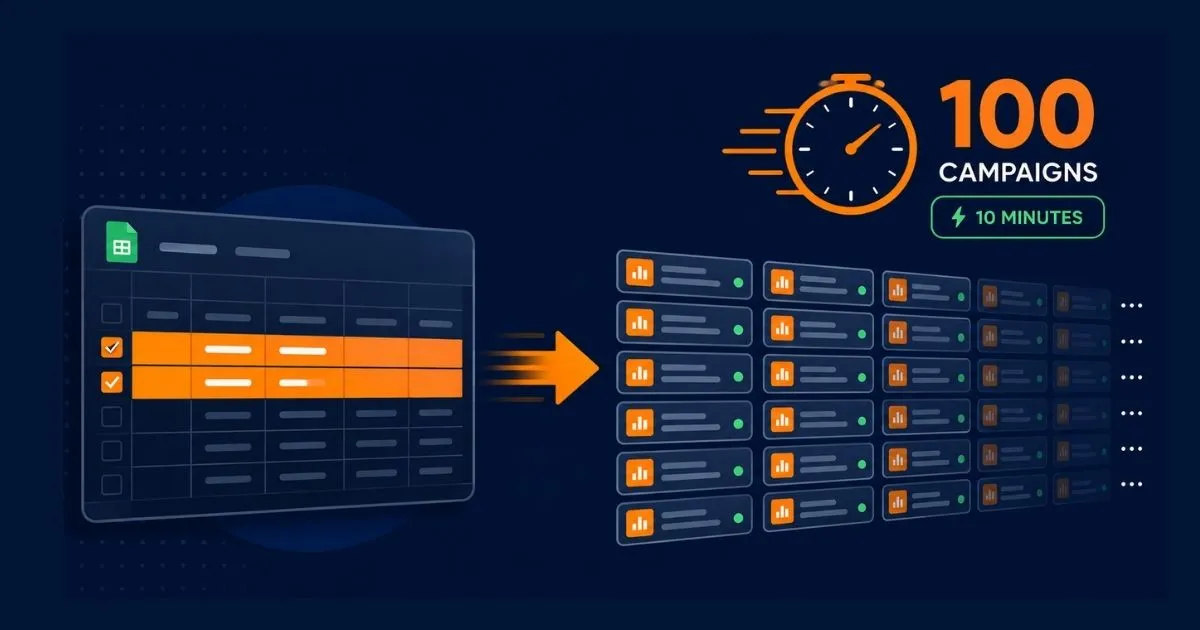
How to Build 100 Amazon PPC Campaigns in 10 Minutes
Creating one Sponsored Products campaign can take only a few minutes. Repeating the same Amazon PPC campaign setup dozens of times is where the process becomes slow, repetitive, and easier to get wrong.
Opening the hundredth one, with the right budgets, match types, and names still intact, is where most sellers give up and start cutting corners. If you sell across a real product catalog, this isn’t a workflow annoyance. It’s a math problem. Ten SKUs across three targeting structures each already add up to 30 campaigns before you’ve touched a single ad group or keyword.
This guide shows you how to build Amazon PPC campaigns fast using one master template row and a handful of spreadsheet formulas, so you can prepare a large campaign batch in minutes instead of building every campaign manually. The worked example focuses on Sponsored Products, and the 10-minute target refers to the mechanical build after your SKUs, targeting, budgets, bids, and naming rules are ready.
If you’re new to Amazon’s Bulk Operations, read our bulksheet setup guide first. This post assumes you already know what Entity, Operation, and State mean, and picks up from there. ScaleA2Z’s PPC management team builds and audits templates like this for multi-SKU brands as part of standard launch setup.
Table of Contents
Why Building Campaigns One at a Time Doesn't Scale
Let’s say you sell protein powder in five flavors and you’re launching three campaign structures per flavor: one automatic-targeting campaign, one manual exact-match campaign, and one manual broad/phrase campaign. That’s 15 campaigns before ad groups or keywords even enter the picture.
Do this manually, and you’re clicking through the same setup screen 15 times, retyping the same budget, and hoping you didn’t mistype a bid on campaign 12. Scale that to a full catalog launch and manual setup stops being tedious. At catalog scale, that repetition slows the launch and increases the chance of inconsistent settings.
A standard bulksheet fixes the upload mechanics, not the repetition. You’re still typing 100 campaign names, 100 budgets, and 100 sets of ad group and keyword rows by hand, unless something generates them for you. That’s the gap a reusable spreadsheet system closes when you need to build Amazon PPC campaigns fast across a larger catalog.
The goal is not simply to launch more campaigns. It is to build Amazon PPC campaigns at scale without multiplying repetitive setup work and preventable errors.
What a Fast-Build Campaign Template Actually Does
The template removes repetitive spreadsheet work, not PPC decision-making. You decide the strategic inputs first, then formulas turn those decisions into a consistent campaign structure. The goal is faster execution without giving up control over targeting, bids, budgets, or naming.
Quick Tip: A campaign template isn’t a file you fill in once and forget. It’s a working spreadsheet where a small set of inputs, such as SKU, target ACoS, starting bid, and targeting structure, feeds formulas that generate the repeated campaign rows for you.
How It Differs From a Plain Amazon Bulksheet
You decide the inputs first, then use formulas to turn those decisions into a consistent campaign structure.
A blank bulksheet from Bulk Operations gives you the correct columns and nothing else. You still need to populate the campaign, ad group, product-ad, keyword, and targeting rows required by Amazon’s current template.
A fast-build template adds a formula layer on top. One input row per SKU or campaign group generates the Campaign, Ad Group, and Product Ad rows automatically, in Amazon’s required format. You enter the campaign-specific inputs, while formulas populate the repeated fields across the required entity rows. This is how you build Amazon PPC campaigns fast without touching each row individually.
What you still decide manually before building
The template speeds up mechanical entry. It doesn’t replace strategy. Before you open the spreadsheet, you still need to decide:
- Which SKUs get their own campaigns vs share one
- Starting bids and daily budgets by product margin and ACoS target
- Targeting mix, including automatic targeting, manual keyword and product targeting, and the match types you plan to use
- Naming convention, so 100 campaigns are still identifiable six months later
That last point matters more than it looks. A naming system decided after launch means renaming 100 live campaigns later, which is worse than the manual entry you were trying to avoid.
The Building Blocks of a Fast Campaign System
Three pieces make a template actually work: a master row, formulas that expand it, and a naming rule baked into the formulas from the start. Skip any one of these, and you’re back to manual typing. The key is separating the few fields that require a decision from the repeated fields a spreadsheet can generate consistently.
The Master Row Method
Set up one master input row for each SKU and targeting-structure combination you plan to launch. If one SKU needs automatic, manual exact, and manual broad/phrase campaigns, that SKU will have three input rows.
- SKU / ASIN
- Product name (short version, for naming)
- Starting daily budget
- Starting bid
- Target ACoS
- Targeting structure (automatic, manual exact, manual broad/phrase)
Everything else, including repeated campaign references, ad group names, Entity, Operation, and State values, can be generated from those inputs using formulas in adjacent columns.
For a 20-SKU catalog using three targeting structures per SKU, you would start with 60 campaign-input combinations. The final Amazon upload will contain many more rows because campaigns, ad groups, product ads, keywords, and targets are separate entities.
Let’s say you’re launching a skincare line with 12 SKUs and three targeting structures per SKU. Instead of building 36 campaigns one at a time, you prepare 36 campaign-input combinations. The workbook then generates the repeated entity rows needed for the final Amazon upload.
Formulas That Do the Heavy Lifting
Two formula types do most of the repetitive work:
- Naming formulas automatically combine fields such as product name, targeting structure, and other naming components. This keeps campaign and ad group names consistent across the entire build without typing each one manually.
- Fill-down formulas extend the same row logic across your SKU list. Once the structure is tested on the first few rows, you can apply it to the remaining rows while keeping the correct SKU-specific values and campaign settings.
Quick Tip: Test the formula logic on 2–3 sample rows before expanding it across the full campaign batch. Check that the generated output follows Amazon’s current requirements for Entity, Operation, State, and the correct parent-child relationships.
Where Naming Fits In
Your naming formula is only as good as the naming system behind it. Build your chosen naming structure into the formula once, and every campaign the template generates will follow the same pattern automatically. We cover the full naming framework, including portfolio and ad group conventions, in a separate guide if you want to standardize this across your entire account.
Step-by-Step: Build 100 Campaigns From One Template
The easiest way to build Amazon PPC campaigns fast is to separate strategy from execution: decide the inputs once, generate the repeated structure, validate the output, then move it into Amazon’s current upload file.
- List your SKUs and targeting structures. One row per combination you plan to launch. For 30 SKUs with 3 targeting structures each, that’s a 90-row plan before you even open the bulksheet.
- Set your budget and bid logic. Set your starting daily budgets and bid rules using product economics rather than applying one flat number across the catalog. Lower-margin SKUs may need tighter bid limits, while products with more contribution margin can sometimes support more aggressive testing.
- Build your naming formula on row 2. Confirm the naming output exactly matches your planned format, including spacing and capitalization, because Amazon’s bulksheet instructions treat these characters as meaningful.
- Build your Entity/Operation/State formulas. Use the values required by the current Amazon template for each row and set the Operation value to Create for entities you are adding.
- Fill down the formulas to cover every row in your SKU list.
- Copy the generated output into Amazon’s bulksheet columns. Paste the generated output as values into a fresh Amazon bulksheet, so your upload file contains static values rather than working spreadsheet formulas.
- Spot-check 5-10 random rows against your original plan before uploading.
- Upload through Bulk Operations and review the processing results row by row.
If you’d rather set this build system up once and reuse it for every future launch instead of rebuilding it each time, that’s exactly the kind of setup work ScaleA2Z’s PPC management team handles for multi-brand accounts.
At ScaleA2Z, spreadsheets and automation support the repetitive execution work. Human-led PPC management uses account data and AI-assisted analysis to guide bid adjustments, campaign optimization, targeting decisions, and ongoing monitoring.

How Many Bulksheet Rows Do 100 Amazon PPC Campaigns Need?
100 Amazon PPC campaigns usually require far more than 100 bulksheet rows. Amazon requires a separate row for each campaign and its child entities, including ad groups, product ads, keywords, and targeting.
A manual Sponsored Products campaign with one ad group, one product ad, and five keywords could require eight entity rows, so 100 campaigns built the same way would produce about 800 rows.
The actual number depends on your targeting structure. Automatic campaigns need fewer targeting rows, while manual campaigns with multiple keywords or product targets create more.
This is why a reusable template becomes valuable when you need to build Amazon PPC campaigns at scale, because a large campaign batch involves far more rows than campaign names alone.
| Entity | Example Rows |
|---|---|
| Campaign | 1 |
| Ad Group | 1 |
| Product Ad | 1 |
| Keywords | 5 |
| Rows per Campaign | 8 |
| 100 Campaigns | About 800 rows |
How Long Does This Actually Take?
Ten minutes is a workflow target for the mechanical build once your workbook has been tested and your inputs are ready. It is not a guarantee or the total time required to plan and launch 100 campaigns.
Keyword and product-targeting decisions, budgets, bids, naming rules, QA, Amazon processing, and post-upload verification all sit outside that build window. Their timing varies with catalog size and campaign complexity.
The main advantage of the system is repeatability. Once the workbook and formulas are working correctly, future campaign batches require less repetitive setup than rebuilding every campaign manually.
Pre-Launch QA Checklist for Bulk-Built Campaigns
Uploading is the easy part. The real risk with mass-built campaigns is launching 60 campaigns with one wrong setting baked into all of them, because the error came from your template, not a single row.
| Check | Why It Matters | Common Failure |
|---|---|---|
| Naming formula output | Wrong spacing or capitalization can make filtering and reporting inconsistent | Formula outputs extra spaces or inconsistent capitalization |
| Budget column values | A formula error can apply the wrong budget across multiple campaigns | Fill-down copies a static number instead of the correct SKU-specific reference |
| Bid logic by margin | Different products may need different starting bid limits based on economics | The same starting bid is applied across products with different margins |
| Match type assignment | Incorrect targeting setup can distort early campaign data | Automatic, exact, broad, or phrase rows are assigned to the wrong structure |
| Parent-child references | Child rows must stay connected to the intended campaign and ad group | A copied reference connects a keyword, product ad, or ad group to the wrong structure |
| Paste as values | Working formulas should not remain in the final upload output | Formula-generated cells are copied without converting them to static values |
Quick Tip: Before uploading, filter your generated sheet by budget column and sort high to low. If every row shows the same number, your formula didn’t pull SKU-specific data. This simple check can quickly expose a broken budget reference before it spreads across the full upload file.

Common Mistakes When Building Campaigns at Scale
Building the naming formula after campaigns are already live: Retrofitting a naming system across dozens of existing campaigns creates avoidable cleanup and increases the chance of inconsistent reporting. Decide the naming logic before generating the batch.
Trusting the fill-down without spot-checking: A formula that works perfectly on row 2 can break on row 47 if a reference cell shifted. Always check a sample from the middle and end of your list, not just the top.
Setting one budget for every campaign: Applying the same daily budget across SKUs with different margins and demand levels means overspending on slow movers and underfunding your best sellers from day one.
Skipping the values-only paste step: Leaving working formulas in your final upload file adds unnecessary risk. Paste the generated output as static values before moving it into Amazon’s current bulksheet.
Applying one bid rule to every targeting structure: Automatic and manual campaigns can serve different jobs, so don’t assume they need identical starting bids. Set bids according to product economics, targeting purpose, and the amount of testing you can afford. A template that applies one bid rule to every targeting structure can make it harder to align bids with each campaign’s purpose.
When a Template Isn't Enough
A template solves the mechanical problem of typing 100 rows by hand. It doesn’t solve strategic decisions like which SKUs deserve dedicated budget, how to sequence a catalog launch, or how to restructure campaigns once real performance data comes in.
For a handful of SKUs, building your own template is worth the setup time. For a full catalog launch, or if you’re managing this across multiple brands, the setup and ongoing restructuring work adds up fast. That’s usually the point where full account management makes more sense than maintaining your own build system alongside everything else running your account.
Build Your Own Free Campaign Template
This is the free template the title refers to. You don’t need paid software or a lead-gen download to get it. A basic Excel or Google Sheets workbook, built with the structure below, gives you a reusable campaign system at zero cost. Set the workbook up with four simple parts:
- A master input tab (SKU, budget, bid, ACoS target, and targeting structure)
- Pre-built naming and Entity/Operation/State formulas
- A generated-output tab formatted to match Amazon’s bulksheet columns
- A QA tab with the checklist items above built in as filter columns
Keep your reusable workbook as the working file, but download Amazon’s current blank bulksheet before each large build and confirm that your output still maps to the required columns and entity structure. This reduces the risk of an older working sheet conflicting with the current upload format.
Conclusion
You can build Amazon PPC campaigns fast without turning 100 campaigns into 100 rounds of manual data entry. A master row, reusable formulas, and a consistent naming system handle the repetitive setup while strategy and QA stay under human control. The real time investment should go into planning, validation, and post-launch decisions rather than repetitive spreadsheet entry.
The template gets you the structure. What you do with campaign data after launch still depends on strategy, monitoring, and adjustments no spreadsheet can automate for you. If you’d rather hand off catalog launches and ongoing PPC strategy entirely, ScaleA2Z’s PPC management team builds and manages this process for growing Amazon brands so launches don’t eat your week.
Frequently Asked Questions
Can I really build 100 Amazon PPC campaigns in 10 minutes?
The build step itself, generating rows from a working template, takes roughly 10-20 minutes. Planning your inputs and running QA before upload takes longer and shouldn’t be rushed.
Do I need special software to build campaigns this fast?
No. A standard spreadsheet with formulas (Excel or Google Sheets) and Amazon’s own Bulk Operations upload is enough. No paid software is required.
What's the difference between a bulksheet and a campaign template?
A bulksheet is Amazon’s raw upload file format. A template is a working spreadsheet built on top of it, using formulas to generate the bulksheet rows automatically instead of typing them by hand.
What should I do if some bulksheet rows fail after upload?
Review the processing results first and isolate the failed rows rather than rebuilding the entire batch. Correct the affected fields using Amazon’s current bulksheet instructions, re-upload only what needs fixing, and verify the result in Campaign Manager.
Can this workflow be adapted for Sponsored Brands and Display campaigns?
Yes, but don’t reuse the Sponsored Products formulas unchanged. Amazon uses different available entities and required fields by ad product, so build and validate a separate output structure for each one using the current template.
What happens if my naming formula has an error after I've already uploaded 60 campaigns?
First review the processing results and identify the affected campaigns. Then use Amazon’s current bulksheet instructions to correct the supported fields or update the campaign directly in Campaign Manager. This is why validating naming output before the first upload is much easier than repairing a large batch later.
Should I build campaigns individually if I only have 5-10 SKUs?
For a small batch, the standard Campaign Manager interface is often faster than setting up a template. The template pays off once you’re launching 20+ campaigns at once or repeating launches regularly.